
How to Create a QR Feedback Survey on Android
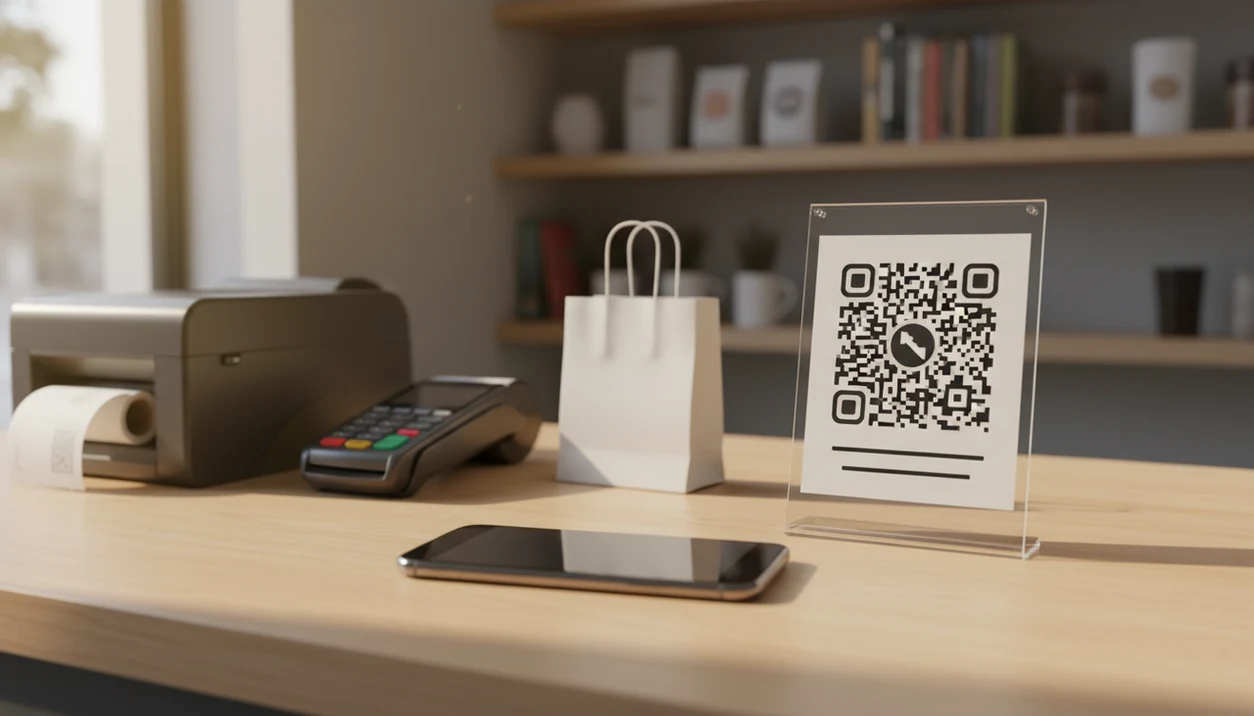
To learn how to create QR feedback survey on Android, build a short feedback form, copy its shareable link, paste that link into a QR code generator, then test the code with an Android camera before printing or sharing it. The QR code is only the doorway; the survey itself must already exist online.
> Customer Feedback Surveys helps small businesses create mobile feedback survey links for post-purchase surveys, NPS scores, and review follow-ups; those links can then be turned into QR codes for receipts, counter signs, packaging inserts, and posters.
- Create the feedback survey first, then turn its public survey link into a QR code.
- Use an Android browser or app to build the form, generate the QR code, download the image, and place it on receipts, counter signs, packaging inserts, or posters.
- Keep the QR survey short, test it on multiple Android phones, and track each placement with separate links when possible.
Android QR Survey Requirements Before You Start
An Android QR survey needs an existing online survey link before the QR code can be generated. A QR code generator converts that link into a scannable image, but it does not create the questions, store responses, or decide who can answer.
You need five practical pieces: an Android phone, a mobile browser, a survey app or form tool, a QR code generator, and a place to display the finished code. That place might be a receipt link printed below the total, a small counter sign, a packaging insert, or a poster near the exit.
Most current Android phones can scan QR codes with the camera app, but test anyway. We have seen a code scan cleanly on a newer Samsung and fail under glare on an older Moto. For small businesses, the usual use cases are post-purchase feedback, NPS, review follow-ups, and service satisfaction after a visit.
How QR Feedback Surveys Work on Android Phones
A QR feedback survey is a survey URL encoded into a scannable visual code. QR codes encode data such as URLs into a two-dimensional barcode pattern, a format explained by DENSO Wave, the company that developed the QR Code system source. On Android, the scan usually opens the survey in Chrome, the default browser, or the form tool’s mobile page.
- A QR code points to the survey destination; it does not store customer answers.
- The flow is scan, open URL, answer questions, submit, then store responses in the survey platform.
- Android does not automatically create the feedback survey; the form must be built first.
- Static QR codes keep the same destination after printing, so changing the link usually requires a new code.
- Dynamic QR codes may allow editable destinations and scan analytics, but those features often sit behind paid plans.
In plain terms, the code is a shortcut. The survey platform is the place where NPS scores, CSAT ratings, and customer comments actually live.
Step 1: Create the Feedback Survey Link on Android
Start by making the survey itself in a mobile-friendly tool. Apps such as Customer Feedback Surveys, Google Forms, Microsoft Forms, SurveyMonkey, and Typeform can all be used from an Android browser, though editing tiny question fields on a phone can feel cramped.
- Open your survey tool on Android and create a new feedback form.
- Name the survey after one customer moment, such as “Checkout Feedback” or “Delivery Feedback.”
- Add a rating or NPS question, then one open-ended follow-up asking why they chose that score.
- Add optional contact permission if your team may need to close the loop.
- Copy the public share link and confirm respondents do not need to log in.
For a store owner checking yesterday’s survey comments before opening the register, a focused survey is easier to act on than a long form full of mixed topics.
Step 2: Generate a QR Code Image on Android
After the survey link is ready, convert that URL into a QR code image from your Android phone. Open a QR code generator in Chrome or use an Android QR app, then choose “URL” or “website” as the code type.
- Paste the public survey link into the QR generator.
- Generate the QR code and preview where it sends you.
- Download the image as PNG, or SVG if the tool offers it.
- Keep the code dark on a light background with clear empty space around it.
DENSO Wave’s QR Code guidance also recommends preserving a clear margin, or quiet zone, around the code so scanners can distinguish the symbol from surrounding text or design elements source. 5. Avoid heavy colors, logos inside the code, or busy frames until you have tested the scan.
Dynamic QR editing, branded QR designs, and scan analytics may require a paid plan. If you are comparing tools, a free QR code feedback survey app can work for a first counter sign, but check export quality before printing 200 inserts.
Step 3: Design an Android QR Survey Sign Customers Trust
A good Android QR survey sign tells customers exactly why to scan and what will happen next. Use plain wording, such as “Scan to rate your visit” or “Tell us how we did,” not a vague “Feedback welcome.”
Add the business name or logo near the code so the scan feels connected to the place they just visited. State the time commitment, such as “Takes under 1 minute,” and say whether feedback is anonymous. If you collect contact details for follow-up, make that optional and visible.
Trust matters.
Include a short fallback URL below the code for customers who cannot scan. That small line helps when the camera will not focus, the patio table is waiting for wiped menus, or the customer is using an older Android phone with a less reliable camera shortcut.
Step 4: Place the QR Feedback Survey at the Right Customer Moment
Place the QR code where the customer still remembers the purchase, meal, appointment, or support experience. Feedback gets weaker when the customer has to reconstruct the visit hours later from a parking lot or email inbox.
- Receipts: Put the QR code below the total for post-purchase feedback.
- Checkout counters: Use a small sign near the card reader for quick CSAT ratings.
- Table tents and posters: Ask restaurant guests before they leave the room.
- Packaging inserts: Catch product feedback after delivery, especially for ecommerce orders.
- Appointment cards and exit doors: Use these for salons, clinics, repair shops, and service counters.
Use separate survey links or separate QR codes for each placement when possible. That makes the weekly spreadsheet tab more useful, with NPS scores, customer quotes, and one assigned follow-up by location or channel. Broader placement ideas are covered in our guide to QR code feedback surveys.
Step 5: Test the Android QR Survey Before Customers Scan
Test the full feedback workflow before any customer sees the code. A QR sign that looks fine on your screen can fail after printing, laminating, or taping it beside a bright window.
Do the test from the same distance customers will use, not just from a desk. A code that scans from six inches away may fail when it is taped behind a counter shield or printed small on a receipt.
- Scan the printed code with at least two Android phones.
- Test one iPhone too, if you have access to one.
- Check whether the camera recognizes the code quickly.
- Confirm the survey opens, loads fast, fits the screen, and shows the submit button.
- Submit a test response and verify it appears in the survey dashboard.
- Retest under real lighting, distance, glare, and counter placement.
The slow line beside the card reader is not the moment to discover your form requires a login. For teams using phones as their main feedback tool, our guide on how to collect feedback with phone covers more mobile-first checks.
Android QR Survey Question Length and Completion Rate
How many questions should an Android QR feedback survey have? For most small-business QR feedback flows, use 3 to 7 questions and keep the required fields even shorter.
SurveyMonkey recommends keeping QR-linked surveys to 5 to 7 questions to reduce drop-off, according to its QR survey guidance source. A practical structure is one rating or NPS question, one “What is the main reason?” question, optional contact permission, and an optional review follow-up.
For a quick post-purchase survey, fewer questions usually beat a longer form because the customer is scanning from a receipt, counter, package, or table sign. Avoid required logins, long matrix grids, too many required fields, and prompts like “Share your thoughts” with no context. Good customer feedback survey apps for small businesses collect post-purchase surveys, NPS scores, and actionable customer insights, not bloated research forms customers abandon halfway through.
Common Android QR Survey Mistakes to Avoid
Most Android QR survey problems happen before the first customer scans. The code works, but the workflow around it is unfinished.
- Generating the QR code before the survey link is final can leave printed signs pointing to the wrong form.
- Using a low-resolution QR image can make the code blurry on receipts, posters, or packing slips.
- Sending every placement to the same untracked link hides which counter, receipt, or poster produced responses.
- Making the survey too long weakens completion during a quick post-purchase moment.
- Forgetting to explain why customers should scan lowers trust and response quality.
One awkward pattern shows up often: the customer says “everything was fine” in person, then gives a 6 out of 10 later. A short private survey gives the team a chance to recover before that frustration becomes a one-star public review.
Limitations
Android QR feedback surveys are useful, but they are not automatic feedback machines. They work only when customers notice the code, trust the request, and have a quick path to finish.
- QR surveys only work if customers see the sign and feel safe scanning it.
- QR familiarity varies by age; Pew Research found younger adults reported more recent QR scanning than adults 65 and older source.
- A QR code cannot fix confusing questions, required logins, or a form that asks too much.
- Print quality, lighting, contrast, distance, and glare all affect scan success.
- Dynamic QR codes, editable destinations, branded designs, and analytics may cost money.
- QR surveys fit quick feedback and NPS-style prompts better than long interviews or complex research.
- Staff prompts help, but they should stay polite and optional.
If you need anonymous in-store comments, an app that collects anonymous feedback in store may be a better fit than a generic form link.
FAQ
Can I create a QR feedback survey on an Android phone?
Yes. You can create the survey link in an online form or survey tool on Android, then paste that link into a QR code generator.
Are QR feedback surveys free to create?
The basic survey link and QR image can often be created for free. Dynamic QR codes, scan analytics, custom branding, and higher response limits may require a paid plan.
Do customers need a QR scanner app on Android?
Many Android camera apps can scan QR codes directly. Older phones may need Google Lens or a separate scanner app.
How many questions should a QR feedback survey have?
Most QR feedback surveys should have 3 to 7 questions. Short surveys fit the quick scan moment better than long forms.
Can I edit a QR feedback survey after printing the code?
You can usually edit the survey questions behind the same link. Changing the QR destination after printing requires a dynamic QR code or a new printed code.
Where should I place a QR feedback survey code?
Place it on receipts, checkout counters, packaging inserts, posters, appointment cards, table tents, or exit areas. The best placement is near the moment the customer finishes the purchase or visit.
How do I track QR survey scans and responses?
Use dynamic QR analytics, UTM links, or separate survey links for each placement. Customer Feedback Surveys and similar tools can also track responses by survey, score, and follow-up status.