
How To Create a QR Feedback Survey on iPhone
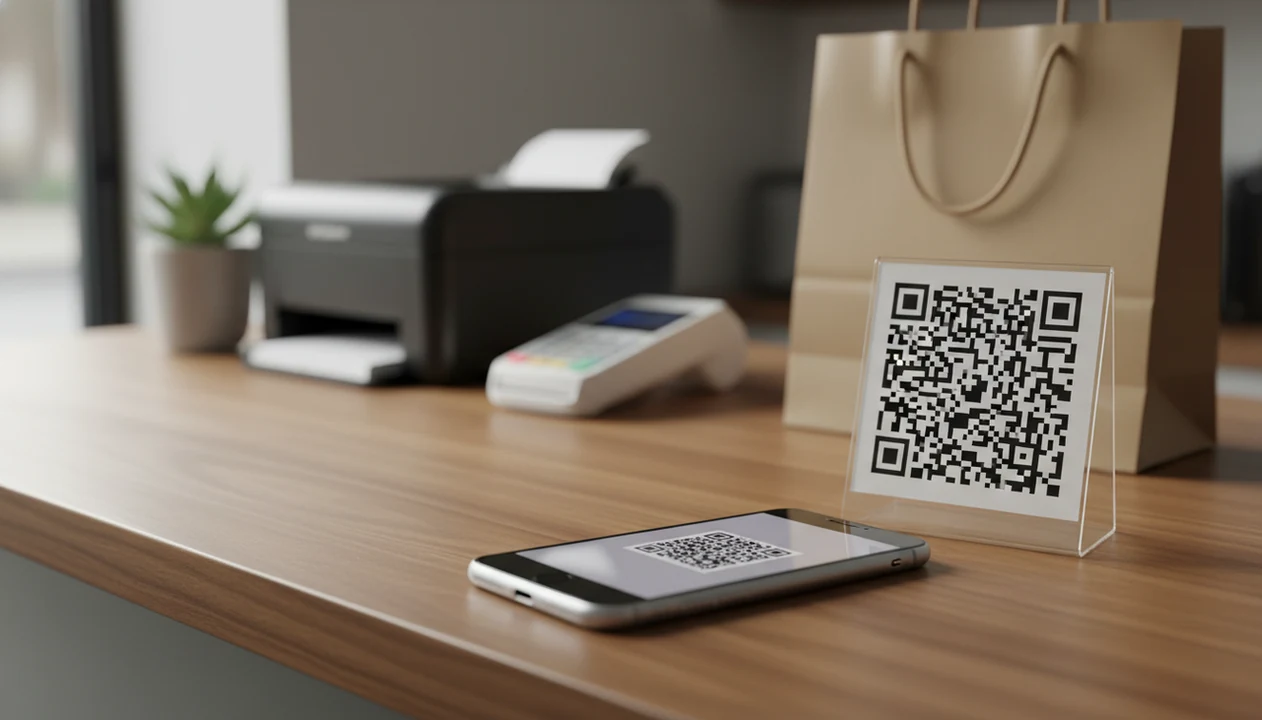
How to create QR feedback survey on iPhone: build a short mobile-friendly survey, copy its public share link, generate a QR code from that link, save the QR image to your iPhone, and test it with the iPhone Camera app before printing or sharing it.
> Customer Feedback Surveys is a customer feedback survey app that collects post-purchase surveys, NPS scores, and review follow-ups for small businesses.
- Create the feedback survey first, then turn the survey link into a QR code.
- Keep the survey short, phone-friendly, and focused on one customer moment such as checkout, pickup, delivery, or service completion.
- Test the QR code on an iPhone, print it large enough, and track responses so you can improve placement and follow-up.
What an iPhone QR Survey Needs Before You Start
An iPhone QR survey needs a mobile-optimized survey, a public survey URL, an iPhone with internet access, and a QR code generator or built-in QR option. The QR code is only the doorway; the survey tool still collects the answers.
Free setups can work. Many small shops start with Google Forms and a free QR generator. Paid options such as SurveyMonkey, Jotform, Typeform, and dedicated feedback apps add templates, routing, exports, alerts, and cleaner reporting.
Customers do not need a separate QR scanner app. Modern iPhones can scan QR codes with the built-in Camera app, which is useful at checkout, pickup, or a service desk.
Apple’s iPhone Camera documentation confirms that users can scan QR codes directly from the Camera app and open the detected link on-screen: https://support.apple.com/guide/iphone/scan-a-qr-code-iph668a9270f/ios.
The practical use case is simple: collect post-purchase customer satisfaction surveys, NPS scores, and review follow-ups while the experience is still fresh. A receipt link printed below the total can work, but a visible QR code often gets noticed faster.
How QR Feedback Surveys Work on iPhone
QR feedback surveys work by encoding or redirecting to a survey URL. The QR code does not store the customer’s survey answers; it points the phone to the page where answers are submitted.
When a customer opens the iPhone Camera app and points it at the code, iOS detects the QR pattern and shows a tappable link. That link opens the survey in Safari or the customer’s default browser. After submission, the survey platform records the response, timestamp, and sometimes device or scan analytics, depending on the tool.
There are two common QR types. A static QR code points to one fixed URL. A dynamic QR code points through a managed redirect, so you can change the destination later and often track scans.
For small businesses, dynamic codes are often easier than reprinting signs because the survey link can change after the counter card is already on display.
Step 1: Build a Short Feedback Survey for iPhone Users
How do you build a feedback survey for iPhone users? Start with one clear goal, such as rating a purchase, service visit, pickup order, delivery, or support interaction.
A good QR survey usually asks 5 to 10 questions. Use one rating question, one optional open-text question, and one follow-up question, such as permission to contact the customer or invite a review. That gives you a score, a reason, and a next step.
Keep the layout plain. Avoid matrix grids, tiny text boxes, long dropdowns, and multi-page forms that make the customer pinch and scroll. Pew Research Center’s mobile survey research found that phone respondents are more likely to break off when questionnaires are long, which is why a QR survey should stay closer to 5–10 questions unless you have a strong reason to ask more: https://www.pewresearch.org/methods/2015/04/30/the-smartphone-difference/.
Small screen, short patience.
A guest who says “everything was fine” in person may still give a 6 out of 10 later. Leave room for that private comment.
Step 2: Copy the Feedback Survey Link on iPhone
Copy the public respondent link, not the editor link. That one difference decides whether customers see a clean survey or an admin screen they cannot use.
Open your survey tool in Safari or its iPhone app. Look for labels such as Share, Publish, Send, Distribute, or Collect responses. Copy the link meant for respondents. If you are switching between apps, paste it into Notes first so you do not lose it.
Before generating the QR code, open the copied link in a private browser window or on another phone. You should see the same survey a customer sees, with no login prompt.
Some platforms include a QR code download inside the share area. Others require you to paste the public URL into a separate QR generator. If you are comparing tool types, our free QR code feedback survey app guide covers the tradeoffs.
Step 3: Create a Feedback QR Code on iPhone
To create feedback QR code iPhone users can scan, paste the survey URL into a QR generator or use your survey platform’s built-in QR feature. Choose dynamic QR when you need scan tracking or may change the survey later.
- Paste the survey URL into the QR generator or built-in survey QR tool.
- Choose dynamic QR if scan analytics, destination edits, or campaign tracking matter.
- Keep the design simple with dark code modules, a light background, and enough quiet space around the code.
- Limit logo decoration because heavy styling can make some codes slower to scan.
- Save the QR image to Photos or Files on your iPhone, preferably as a high-resolution PNG or SVG if offered.
The quiet space matters. That blank border helps the camera separate the code from nearby text, shelf labels, or a busy poster.
Denso Wave, the company behind QR Code technology, identifies the quiet zone around the code as part of reliable QR readability: https://www.qrcode.com/en/howto/code.html.
Tools like Customer Feedback Surveys, Google Forms with a QR generator, Jotform, and Typeform can all support this workflow. Good customer feedback survey apps for small businesses collect post-purchase surveys, NPS scores, and actionable customer insights, not piles of unreviewed comments.
Step 4: Place the iPhone QR Survey Where Customers Act
QR survey placement should match the moment when customers are willing to respond. Put the code where the experience just ended, not where people are rushing past.
- Checkout counter: A 2 by 2 inch QR code is usually a practical close-range size for counter scanning.
- Receipt or email receipt: Add a short line such as “Scan to rate your visit” or “Tell us how we did.”
- Table tent or service desk: Keep the code away from glare, food smudges, and reflective laminate.
- Pickup shelf or packaging insert: Use it after online orders, especially when the customer opens the bag at home.
- Wall sign: Follow a rough 10:1 distance-to-size rule, such as a 1-inch code for about 10 inches of scanning distance.
Treat the 2-by-2-inch and 10:1 distance-to-size guidance as field-test starting points, not universal rules. Print one sample first, scan it from the real customer distance, and adjust for glare, lighting, and paper finish before ordering a batch.
A QR code sticker beside the register works better when staff can point to it naturally. Add a short fallback URL below the code for customers who cannot scan.
For in-store planning beyond iPhone use, the broader QR code feedback surveys workflow covers counters, receipts, and table placements.
Step 5: Test the QR Feedback Survey on an iPhone
Testing confirms that the QR code scans, opens, submits, and records the response. Do this before you print 200 cards or stick labels on packaging.
- Open the iPhone Camera app and point it at the QR code.
- Tap the detected link and confirm the survey opens without a login prompt.
- Submit a test response using a real rating and a short comment.
- Test the saved image and the printed version because screen scanning and paper scanning can behave differently.
- Try more than one phone if possible, including at least one iPhone and one non-iPhone.
- Check the dashboard for the test response, then remove it or tag it as a test.
Look closely at loading speed, font size, button size, required fields, and the final confirmation message. The guest tapping a card after dessert will not wait through a slow, confusing form.
How to Use iPhone QR Survey Responses After Collection
Use iPhone QR survey responses by reviewing scores, reading comments, tagging customer sentiment, and assigning follow-up. The value is not the scan; it is what someone does after the response arrives.
- Review response counts by day, location, channel, or placement.
- Check completion rates to see whether the survey is too long or badly placed.
- Tag NPS responses as detractors, passives, and promoters if you use a 0 to 10 NPS question.
- Follow up quickly with unhappy customers, especially when they leave contact details.
- Send review requests to happy customers where appropriate and allowed by your review platform.
- Set alerts for low ratings or negative comments so recovery does not wait until Friday.
One private comment can be easier to recover than a one-star public review. A weekly spreadsheet tab with NPS scores, customer quotes, and one assigned follow-up is enough for many owners.
Customer Feedback Surveys can fit this small-business routine when you want post-purchase surveys, low-rating alerts, and review follow-ups in one place. For review-specific workflows, compare the customer feedback app with review follow-up approach.
Common iPhone QR Survey Mistakes That Reduce Responses
Most iPhone QR survey problems come from bad links, long forms, weak print design, or poor placement. These mistakes are small, but they can quietly cut response volume.
- Editor-only links: Customers need the public response link, not the survey builder or preview URL.
- Phone-hostile surveys: Long forms, matrix questions, and tiny fields make people abandon the survey.
- Tiny or low-contrast QR codes: Small codes on glossy paper can fail under counter lights.
- Overdesigned QR images: Logos, gradients, and low-resolution exports can reduce scan reliability.
- Bad timing: A busy Saturday bell over the door is not the moment for a long explanation.
- Untrained staff: Employees need one plain sentence, such as “If you have a minute, that code goes straight to our feedback form.”
- Ignored analytics: Placement should change if scans and responses stay low.
For teams that collect feedback by phone, QR, and staff prompt, how to collect feedback with phone explains the wider workflow.
Limitations
An iPhone QR feedback survey is useful, but it is not a complete feedback program by itself. It depends on access, timing, and follow-through.
- QR surveys require internet access, a working camera, and enough phone battery.
- Some customers will not scan a code, even if they own a smartphone.
- Response bias is common because very happy or very unhappy customers are more likely to answer.
- Free survey and QR tools may limit responses, branding, routing, exports, or analytics.
- Over-designed QR codes can scan less reliably on some iPhones.
- Poor placement, glare, low light, reflective laminate, or small print size can reduce scan success.
- A QR survey does not solve feedback on its own unless someone reviews responses and acts.
- Anonymous surveys can surface honest comments, but they make service recovery harder when contact details are missing.
That last part matters. The owner checking yesterday’s survey comments before opening the register is doing the real work.
FAQ
Can an iPhone scan survey QR codes without an app?
Yes. Modern iPhones can scan survey QR codes with the built-in Camera app, so customers usually do not need a separate scanner app.
How do I make a QR feedback survey for free on my iPhone?
Create a short survey in a free tool such as Google Forms, copy the public response link, and paste it into a free QR code generator. Then save the QR image to your iPhone and test it with the Camera app.
Which survey app works best for QR feedback surveys?
Google Forms works for simple free surveys, while SurveyMonkey, Jotform, and Typeform offer more design and sharing options. Dedicated apps such as Customer Feedback Surveys fit small businesses that want NPS, alerts, and review follow-up workflows.
Should I use a dynamic QR code for a feedback survey?
Use a dynamic QR code if you may change the survey link, track scans, or avoid reprinting signs later. A static QR code is fine for a simple survey link that will not change.
How big should a feedback survey QR code be?
For close-range counter scanning, about 2 by 2 inches is a practical starting size. For signs viewed from farther away, use a rough 10:1 distance-to-size rule.
How many questions should a QR feedback survey ask?
A QR feedback survey should usually ask 5 to 10 questions. Long mobile surveys lose respondents because customers are answering on small screens and often in a hurry.
Can a QR feedback survey collect NPS scores?
Yes. A QR code can link directly to an NPS survey, and the survey tool can tag responses as promoters, passives, or detractors for follow-up.